Duplicate SMTP Address
Finding Duplicate SMTP Address
- Run Active Directory Users and Computers.
- Right-click the domain object and choose Find from the context menu. This will bring up the Find Users, Contacts, and Groups window.
- In the Find drop-down list, choose Custom Search.
- Click the Advanced tab and in the Enter LDAP query: field, enter the following text: proxyaddresses=smtp:exchange_2007@neilhobson.com.
- Click the Find Now button.
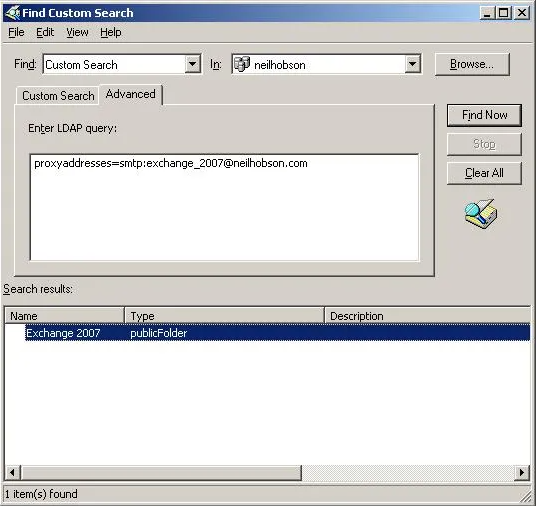
or use adfind
adfind –root –f proxyaddresses=smtp:exchange_2007@neilhobson.com
or use
ldifde –f c:\addresses.txt –l proxyaddresses
-or-
csvde –f c:\addresses.txt –l proxyaddresses
LDP
Finally, you can use LDP to determine which object owns an SMTP address. LDP is a Windows support tool and yet another way to search Active Directory via LDAP. Here’s what you need to do once you’ve run ldp.exe. Note that we’re using our trusty SMTP address of exchange_2007@neilhobson.com as the example here.
- Click the Connection menu and then click Connect.
- In the Connect window, enter the name of one of your directory servers in the Server field and then click OK.
- Now back at the main LDP screen, click Bind from the Connection menu.
- In the Bind window, authenticate yourself to the directory by typing a valid username, password and domain name, and then click OK.
- Now that we’ve connected and authenticated to the directory, we can proceed to search for our SMTP address. Click the View menu and then click Tree.
- In the Tree View window, leave the Base DN field empty and click OK.
- In the left-hand pane of the LDP window, you should now see your domain listed which can be expanded accordingly. This is shown in Figure 8.
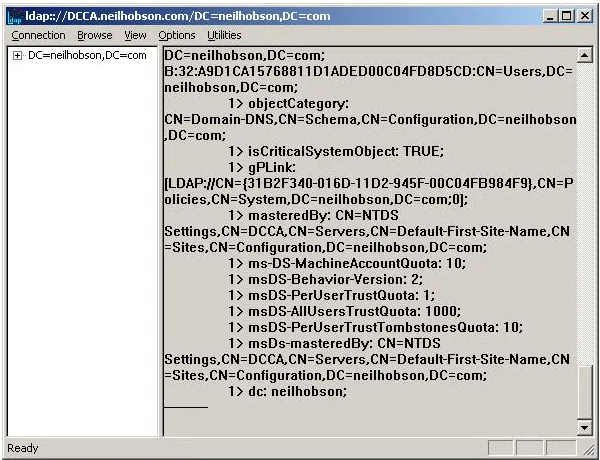
Figure 8: LDP Domain Connection
- Now right-click the domain name listed at the very top of the left-hand pane and choose the Search option from the context menu.
- In the Search window, enter the following text into the Filter field:
proxyaddresses=smtp:exchange_2007@neilhobson.com - Still at the Search window, ensure that the Scope option is set to Subtree and then click Run.
- In the right-hand pane of the LDP window, the results of the search will now be displayed. This is shown in Figure 9.
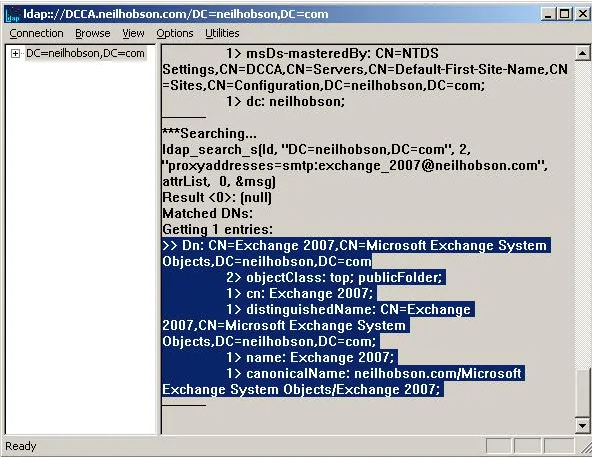
Figure 9: LDP Results
You can see from Figure 9 that the highlighted text clearly shows the distinguished name of the owning object, along with useful information such as the object class (in this case a public folder) and the object’s common name (in this case Exchange 2007). Note that, if the SMTP address wasn’t owned by any object, you’d see Getting 0 entries shown in the right-hand pane.
Using LDP is somewhat more complicated and time consuming than the other processes, but nevertheless it’s still a valid option in searching for an SMTP address.